What this tool does
China Travel Planner is a free online planner that turns a few simple inputs into a day-by-day itinerary, including a map view and practical travel tips. You can also tweak the itinerary and export a printable version.
The screenshots in this guide use an example trip: 7 days · Shanghai + Guangzhou + Zhangjiajie · Easy Stroll · “I am mainly interested in visiting cultural and natural environments.”
Open the planner
- Visit /en/#tools
- On the homepage, click China Travel Planner in the top navigation to jump to the planner section.

Basic options (before generating)
1) Choose your trip length
In Days of Travel, select how many days you want to plan.

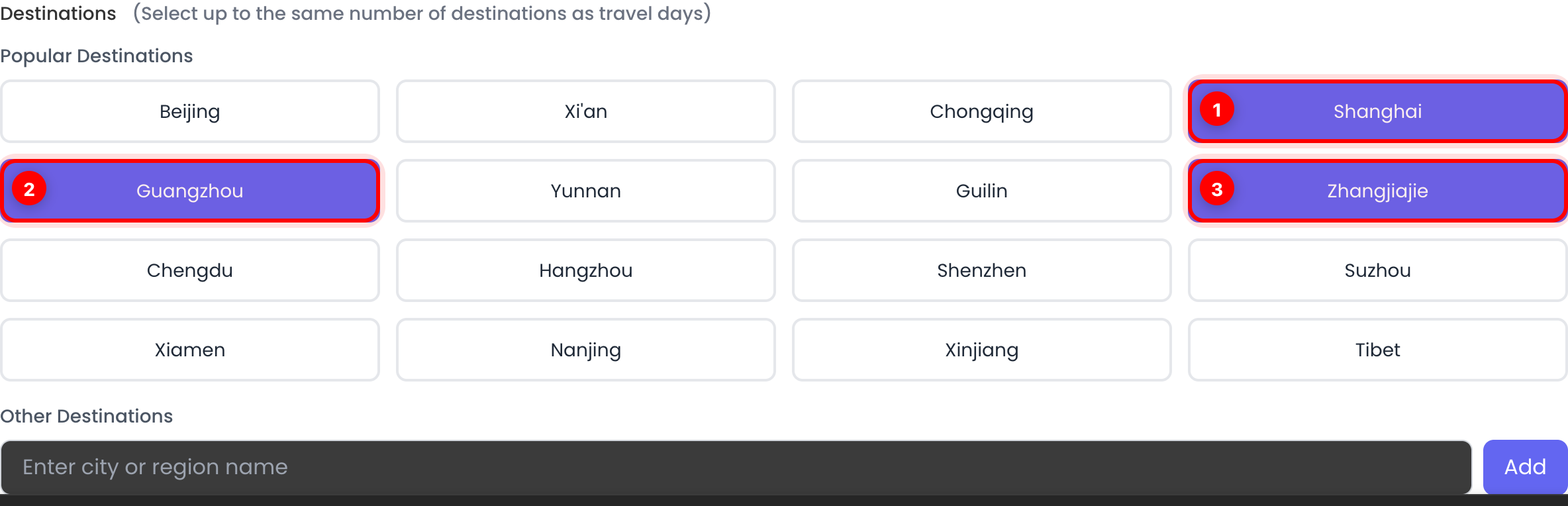
2) Pick destinations
In Destinations, choose where you want to go:
- Select from Popular Destinations
- Or type a city/region name and click Add
Tip: You can select up to the same number of destinations as your travel days.
3) Set your travel pace
In Travel Pace, choose how packed each day should feel:
- Relax & Unwind (lighter schedule)
- Easy Stroll (balanced)
- Must-See Highlights (more packed)

4) Add your preferences (optional)
Use Travel Preferences and Ideas to tell the planner what you care about (culture, nature, food, budget, etc.).

5) Generate your itinerary
Click Start Planning Travel and wait for the results to load.

Itinerary planning (review & edit)
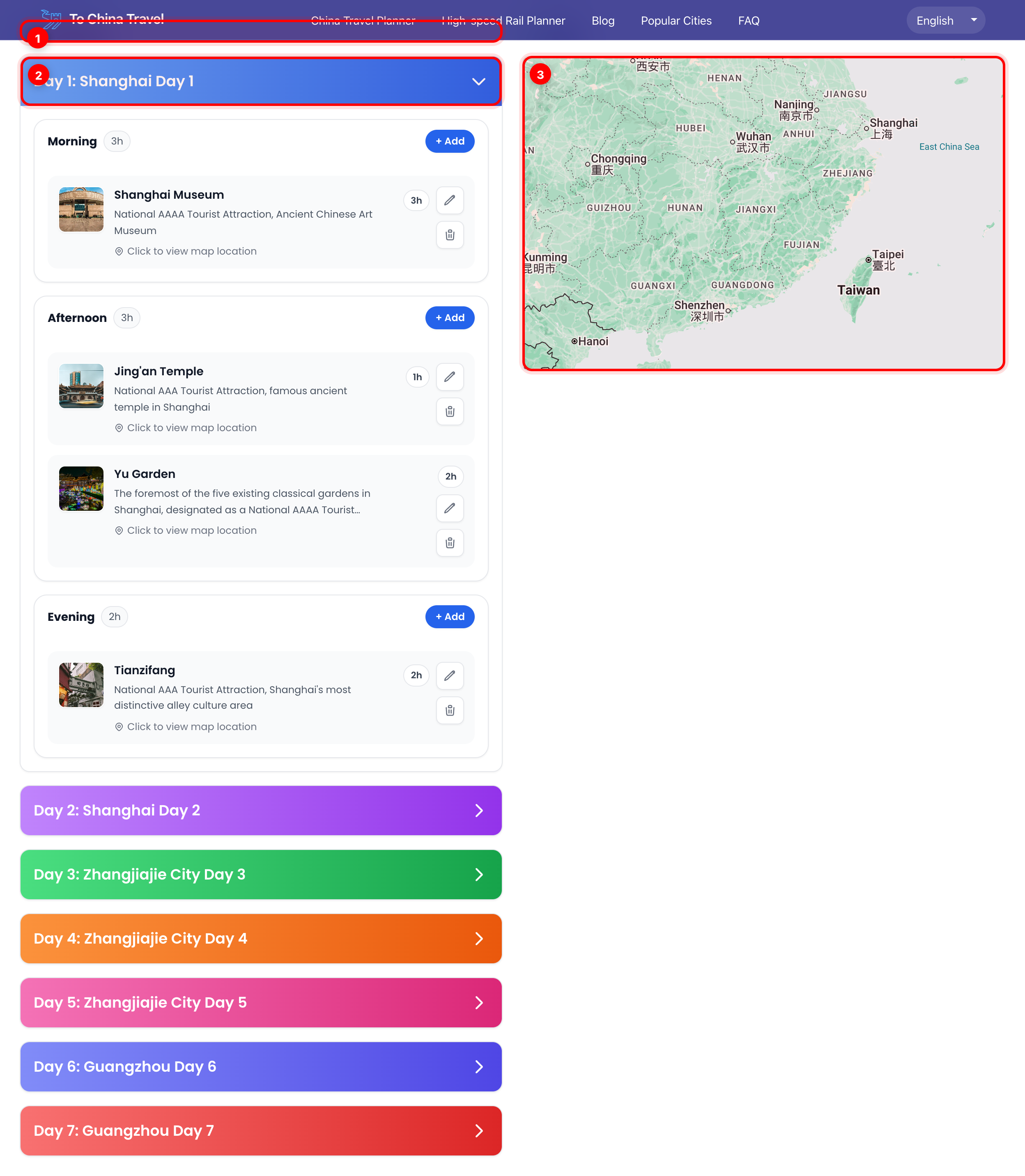
6) Review the itinerary and map
After generation, you’ll see:
- An Itinerary list grouped by Day
- A Map that helps you understand locations and distances
Click a day header to expand/collapse it. You can also click an attraction card to focus it on the map.
7) Edit the itinerary (Add / Replace / Remove)
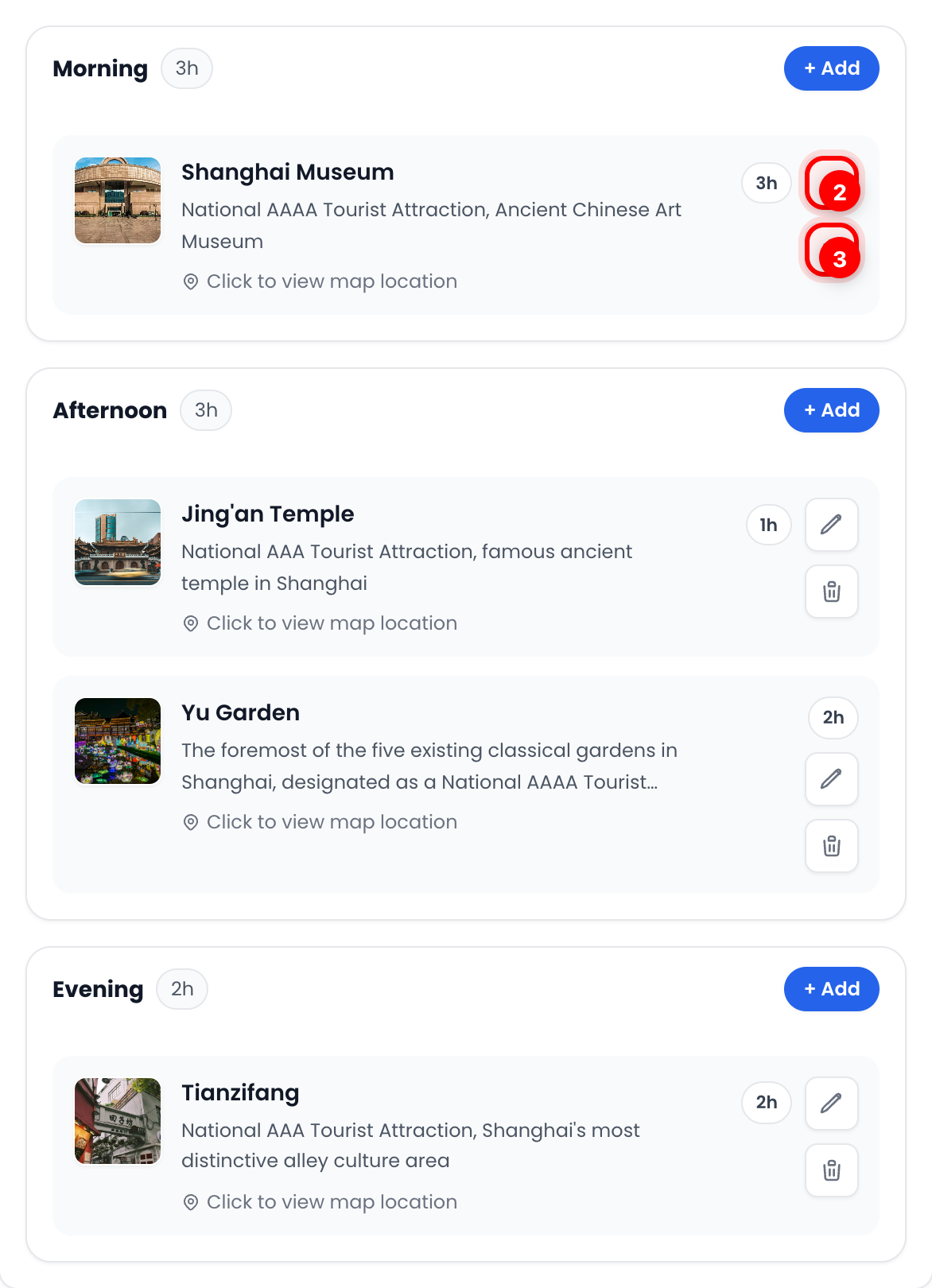
Each day is split into Morning / Afternoon / Evening slots.
- Use + Add to fill an empty slot
- Use the Replace (pencil) button to swap an attraction
- Use the Remove (trash) button to delete an attraction
8) Search and confirm a new attraction
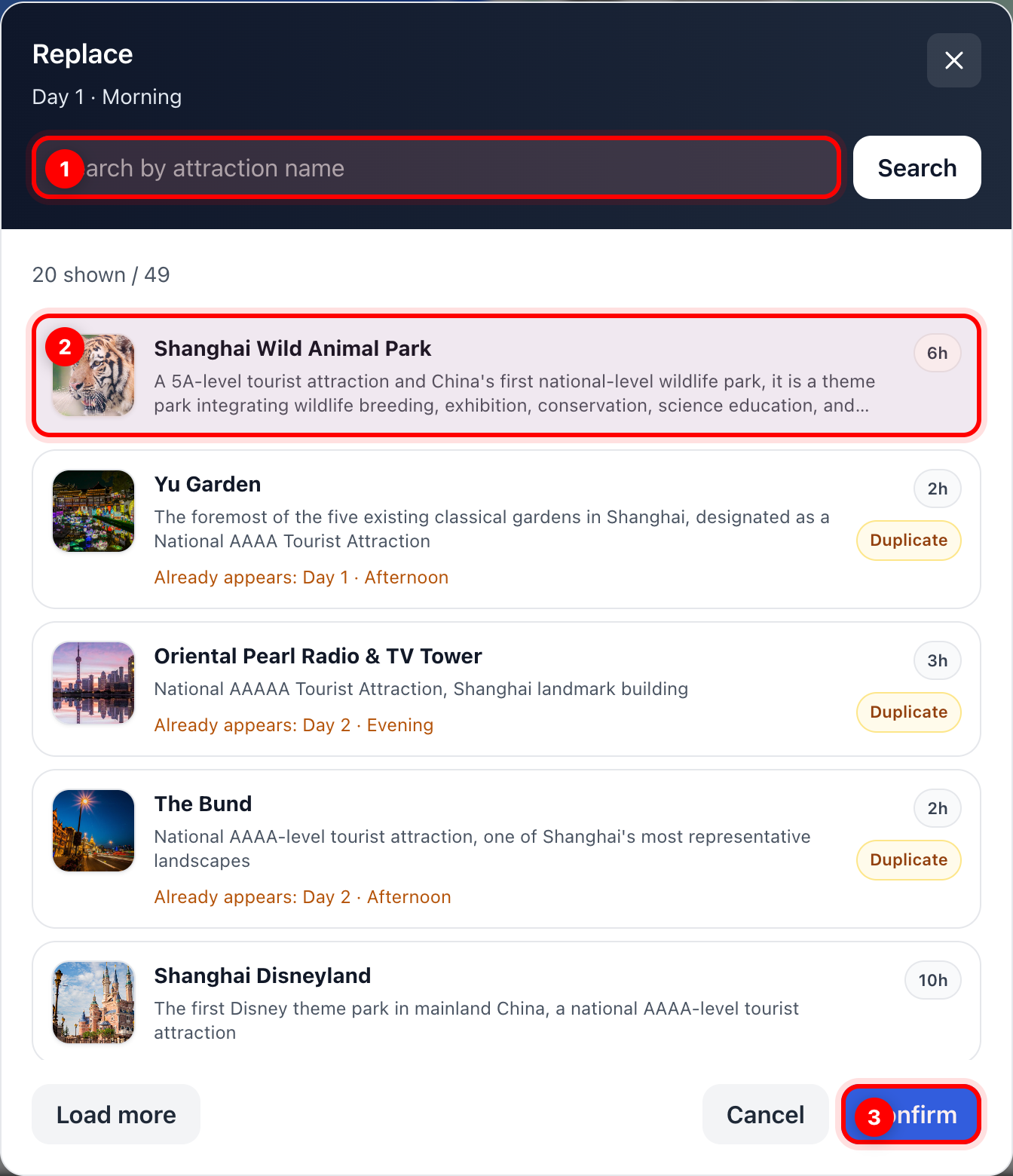
When you click Add or Replace, a search modal opens:
- Search by attraction name (optional)
- Select a result
- Click Confirm to apply the change
Download PDF
9) Download a printable version
After your itinerary is generated, find Download PDF and click Download PDF.
- A new tab opens with a printable share page
- Use your browser’s print function to Save as PDF
- If nothing opens, your browser may be blocking popups — allow popups and try again

Start planning your personalized itinerary now: Plan now